MetaTrader 4 oder 5 mit deinem Trading-Journal verbinden
Lass jeden geschlossenen Trade vom Expert Advisor für MT4 und MT5 übertragen oder trag ihn mit ein paar Klicks selbst ein. Beides landet im selben Kalender.
Automatisch übertragen aus MetaTrader 54
Elf Schritte, einmalig. Danach landet jeder geschlossene Trade von selbst in deinem Kalender.
MetaTrader 54 installieren
Schon installiert? Dann weiter mit Schritt 2.
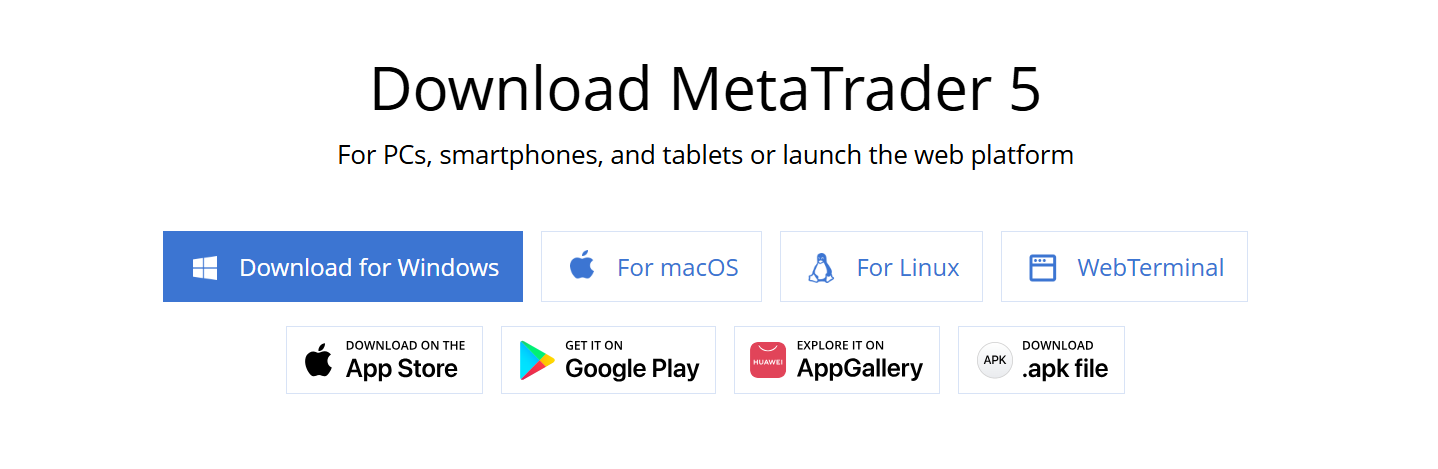
Geh auf metatrader5.com/de/download und klick auf „MetaTrader 5 herunterladen“. Öffne die heruntergeladene Datei und klick dich durch die Installation. Die Voreinstellungen passen.
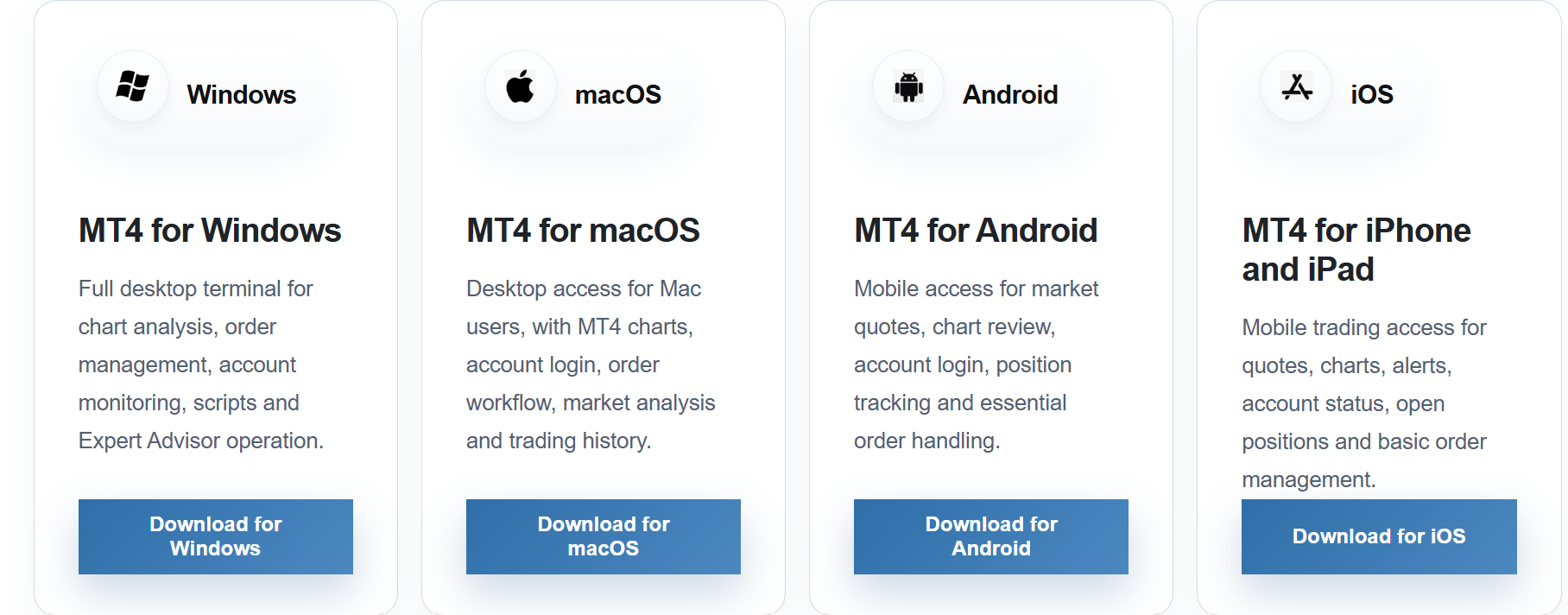
Geh auf metatrader4.com/de/download und klick auf „MetaTrader 4 herunterladen“. Manche Broker haben eine eigene Fassung, frag im Zweifel dort nach. Öffne die heruntergeladene Datei und klick dich durch die Installation. Die Voreinstellungen passen.
Ein Handelskonto in MetaTrader anlegen
Du hast schon ein Demo- oder Livekonto eingerichtet? Dann weiter mit Schritt 3.
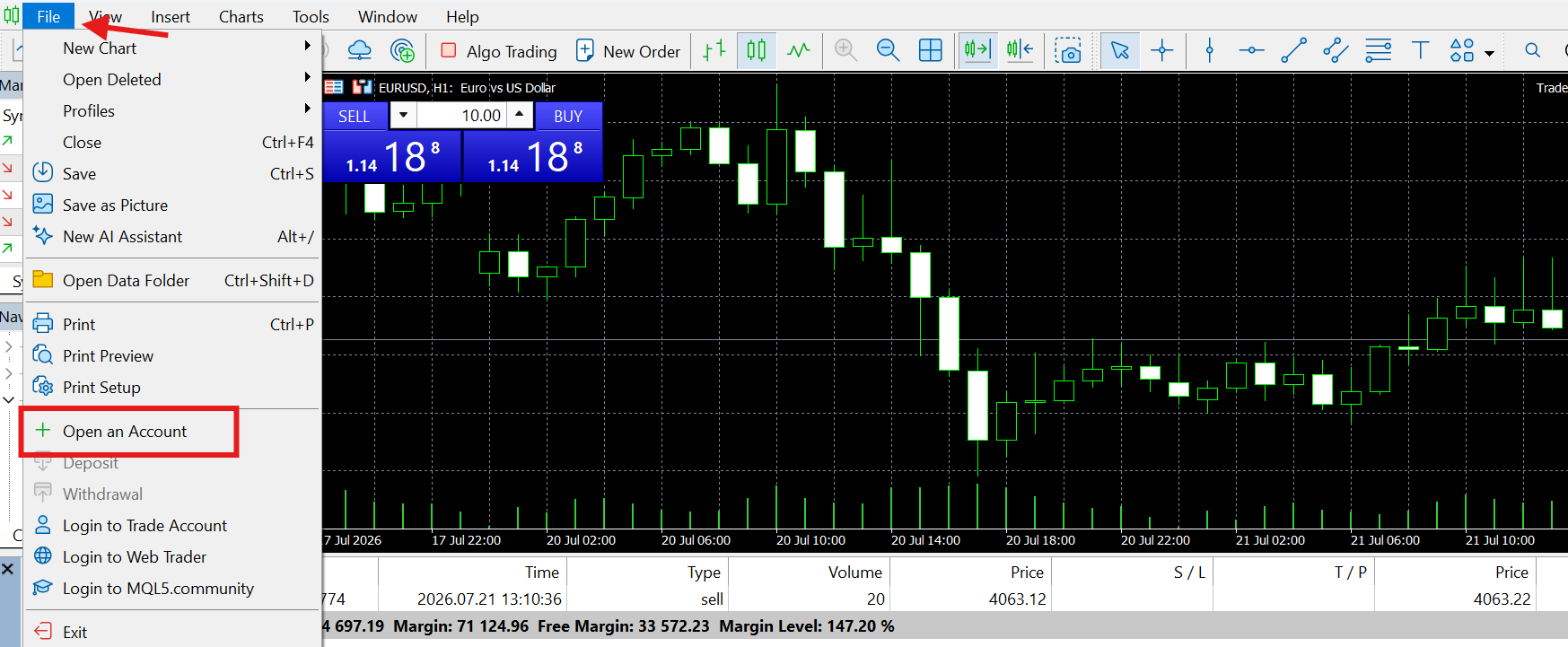
Öffne MetaTrader. Ein Fenster namens „Konto eröffnen“ sollte von selbst erscheinen. Wenn nicht, klick oben auf Datei → Konto eröffnen.
Demokonto
Ohne echtes Geld, gut zum Ausprobieren.
Wähl „MetaQuotes-Demo“ als Server und dann „Neues Demokonto“. Trag Name, E-Mail-Adresse und Startguthaben ein (beliebige Werte reichen) und klick dich bis zum Ende durch.
Bei deinem Broker
Du handelst schon bei einem echten Broker.
Wähl stattdessen dessen Server und melde dich mit den Zugangsdaten an, die du von ihm bekommen hast.
MetaTrader erlauben, mit TradeLista zu sprechen
Diese eine Einstellung erlaubt dem Expert Advisor, deine geschlossenen Trades an TradeLista zu schicken. Ohne sie kommt nichts an, und MetaTrader sagt dir nicht, woran es liegt.
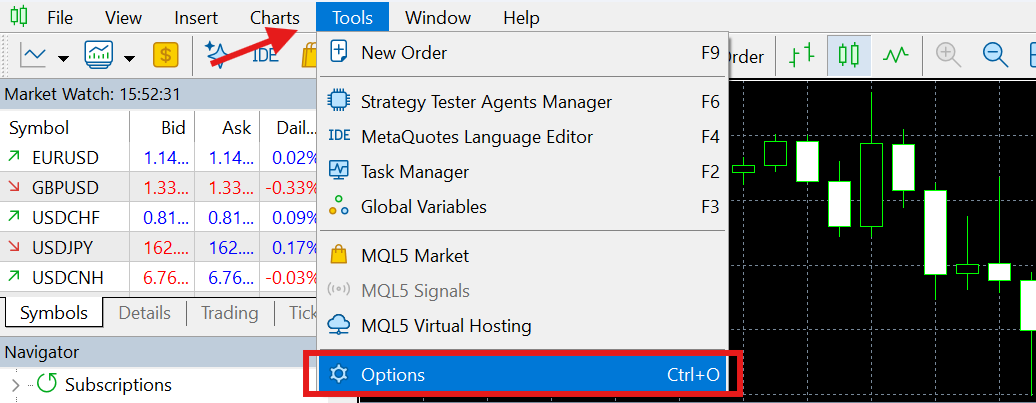
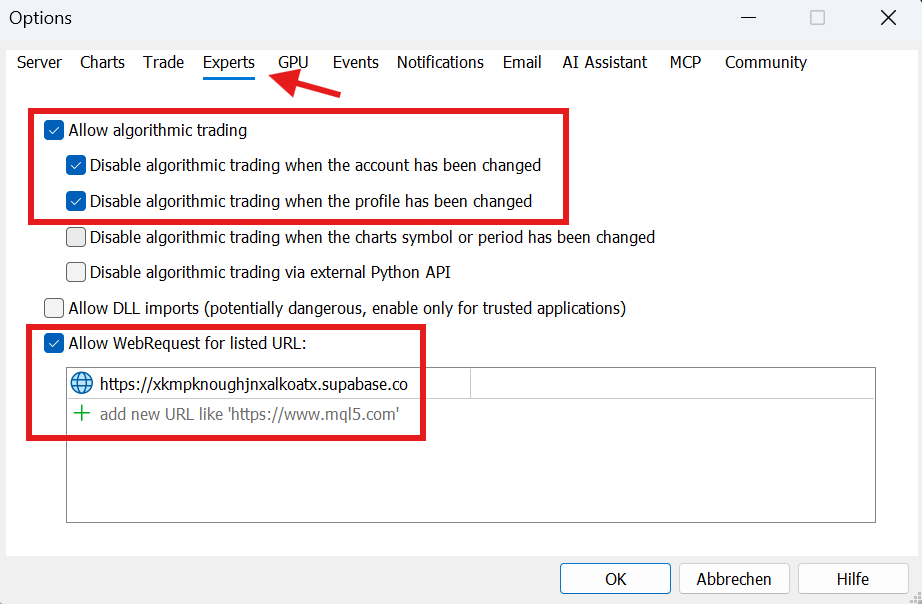
Klick in MetaTrader oben im Menü auf Extras und dann auf Optionen. Öffne den Reiter „Expert Advisors“.
Setz den Haken bei „WebRequest für folgende URL erlauben“. Klick in das leere Feld darunter, füg diese Adresse ein und drück die Eingabetaste:
Klick auf OK.
Deinen persönlichen API-Schlüssel in TradeLista holen
An diesem Schlüssel erkennt TradeLista, zu welchem Konto ein Trade gehört. Die Übertragung über den Expert Advisor gehört zu Pro. Melde dich also auf tradelista.com mit einem Pro-Konto an (bist du noch im Gratis-Tarif, wechsle hier zuerst).
Klick oben rechts auf dein Kürzel und dann auf „Kontoeinstellungen“. Öffne die Karte „Handelskonten“ und klick auf „+ Handelskonto hinzufügen“.
Gib ihm einen Namen (etwa „Mein MT5“„Mein MT4“), wähl Live oder Demo, wähl MT5MT4 als Plattform und klick auf „Konto hinzufügen“.
Klick neben deinem neuen Konto auf „🔑 Schlüssel kopieren“. Lass diesen Tab offen, den Schlüssel fügst du in Schritt 8 ein.
Schlüssel später verlegt oder auf einem anderen Gerät gebraucht? Er ist immer da: dein Kürzel →„Kontoeinstellungen“ → „Handelskonten“ und neben dem Konto wieder auf „🔑 Schlüssel kopieren“.
Den TradeLista Expert Advisor herunterladen
Klick unten, um die Datei zu speichern. Sie landet meist im Ordner Downloads:
⬇ TradeListaSync.mq5 herunterladen
Klick unten, um die Datei zu speichern. Sie landet meist im Ordner Downloads:
⬇ TradeListaSync.mq4 herunterladen
Dieser Expert Advisor liest nur. Er meldet ausschließlich Trades, die du bereits geschlossen hast. Er eröffnet, schließt und ändert keinen Trade. Genaueres steht unten in den Fragen.
0c71a371d5b1d45b6431b9227f0ecf1c8b7f85b0214af4ac0b1a2a73014d932fc24137ba69c0ee331f2dbcfa4dba1d30c548c2ce594275d8a042fcba475f8be0Die Datei dorthin legen, wo MetaTrader sie findet
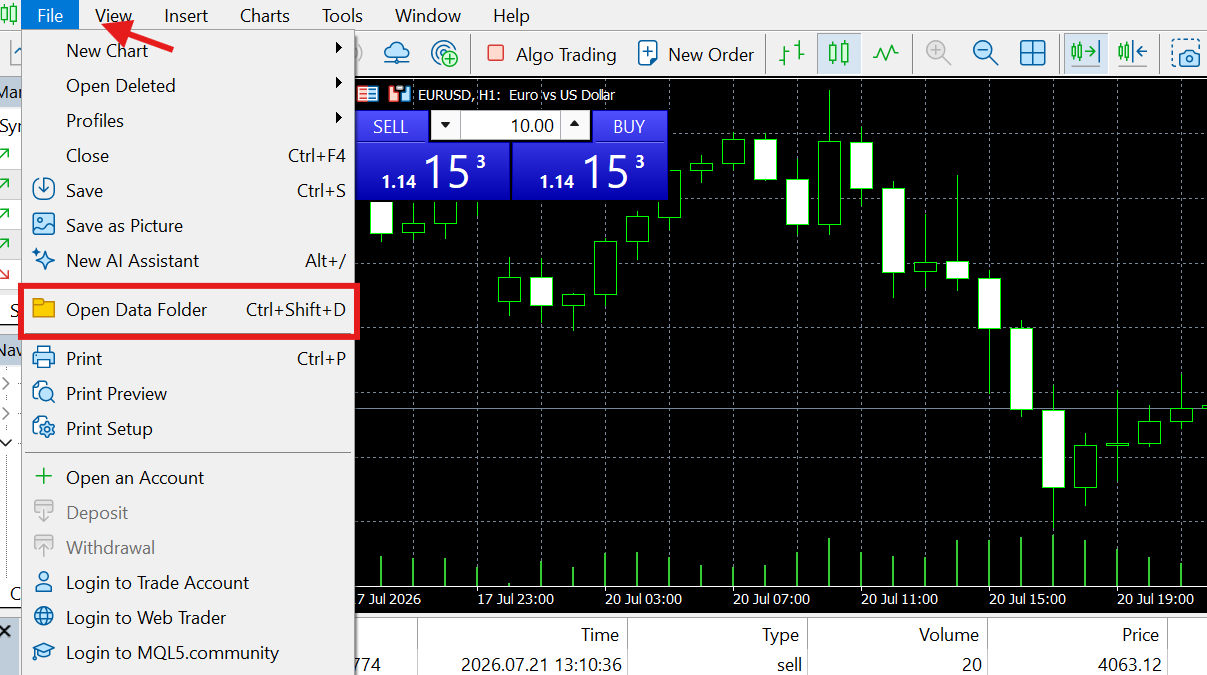
Klick in MetaTrader auf Datei → Datenordner öffnen. Es öffnet sich ein Windows-Fenster.
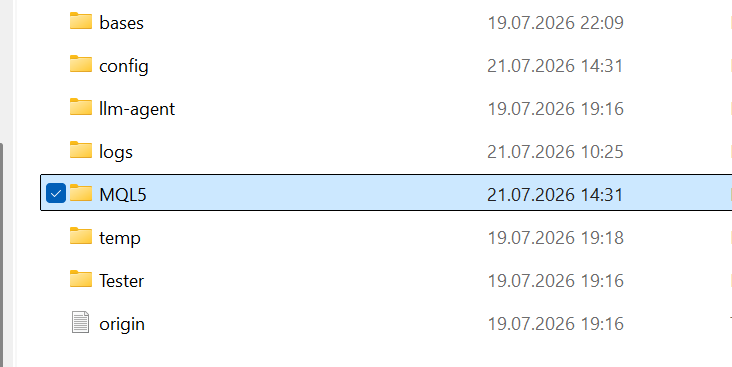
Öffne per Doppelklick den Ordner MQL5MQL4 und darin den Ordner Experts.
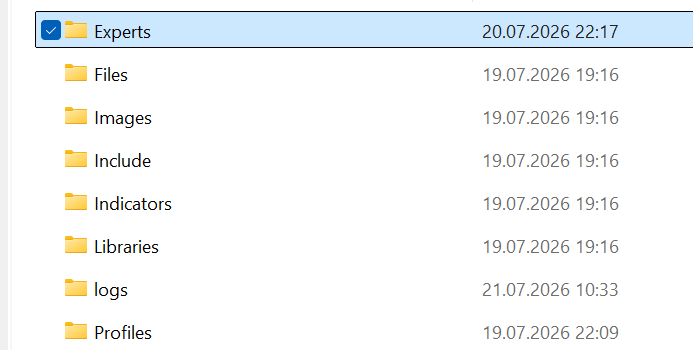
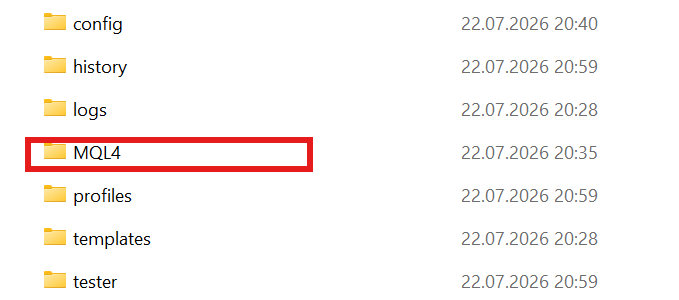
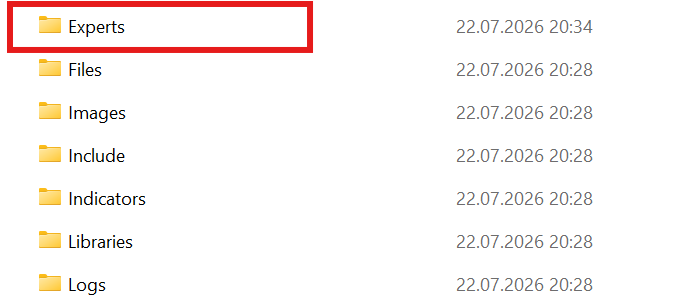
Kopier die in Schritt 5 heruntergeladene Datei TradeListaSync.mq5TradeListaSync.mq4 in diesen Ordner Experts, per Ziehen und Ablegen oder mit Kopieren und Einfügen.
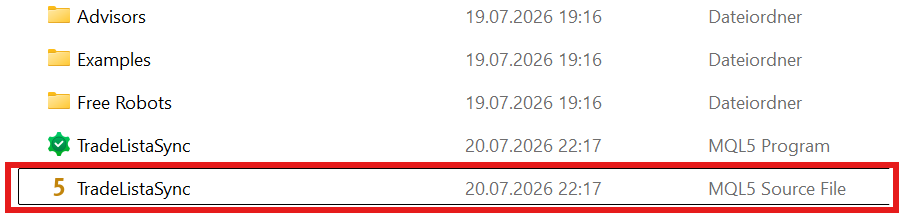
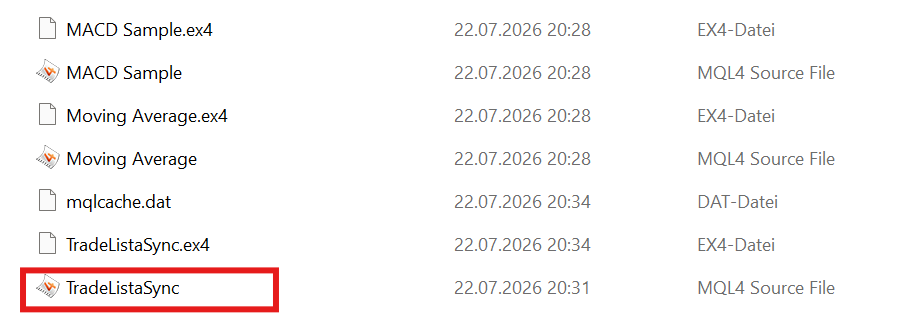
KompilierenNavigator aktualisieren
Zurück in MetaTrader: Schau links auf das Fenster Navigator. Siehst du es nicht, drück Strg+N.
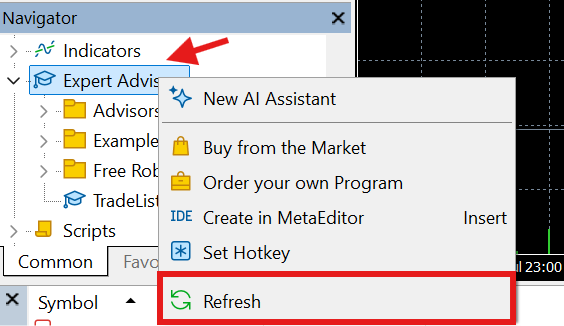
Rechtsklick auf „Expert Advisors“, dann auf „Aktualisieren“. TradeListaSync sollte jetzt in der Liste stehen.
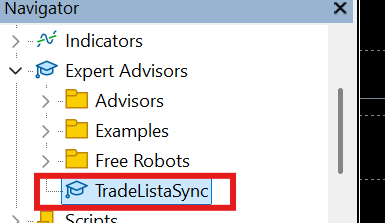
Für MetaTrader 4 war es das. Er kompiliert die Datei selbst, sobald sie in der Liste auftaucht. Einen eigenen Editor- oder Kompilierschritt gibt es nicht. Weiter mit Schritt 8.
Rechtsklick darauf und „Ändern“ wählen. Es öffnet sich ein zweites Fenster namens MetaEditor mit dem Code. (Ein Doppelklick hängt den Expert Advisor stattdessen direkt an einen Chart. Das ist Schritt 8, nicht dieser.)
Es erscheint stattdessen ein Fenster „MQL-Assistent“ und fragt, was du erstellen möchtest? Das ist der Assistent für neue Programme. Der Rechtsklick ist auf der Ordnerüberschrift „Expert Advisors“ gelandet statt auf TradeListaSync selbst. Klick auf Abbrechen, klapp im Navigator des MetaEditors links Experts auf und öffne TradeListaSync per Doppelklick.
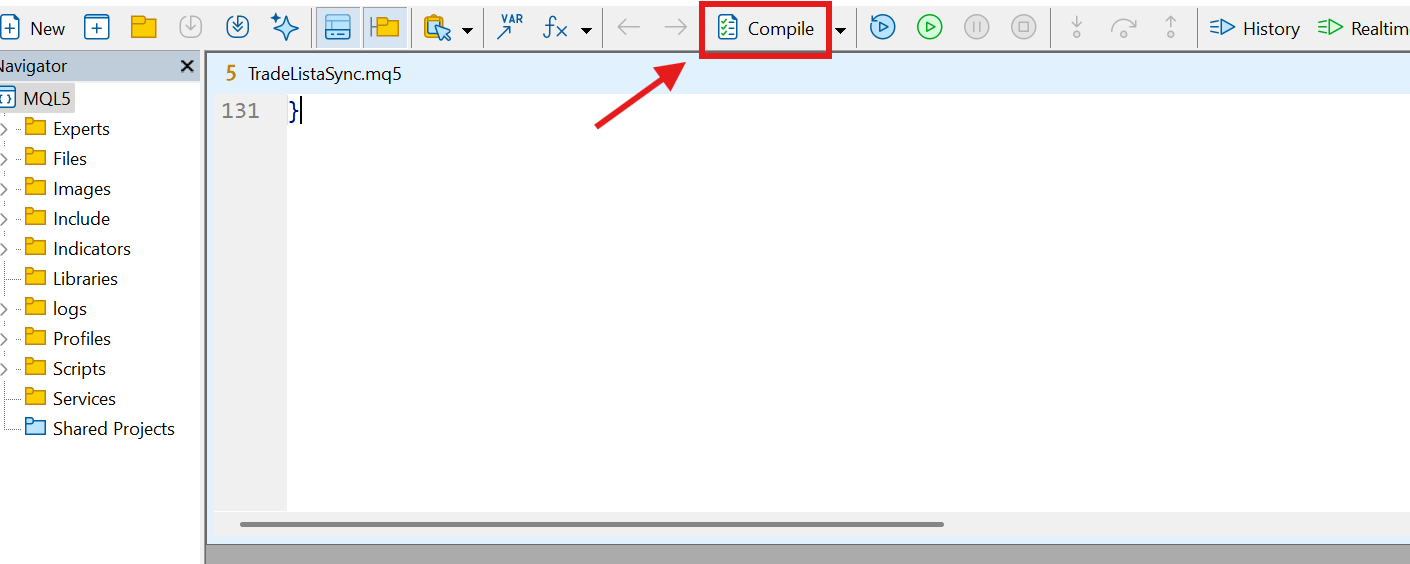
Klick im MetaEditor oben auf „Kompilieren“ oder drück F7. Damit wird aus dem Code ein Programm, das MetaTrader ausführen kann. Ohne diesen Schritt gibt es in Schritt 8 nichts, was du an einen Chart hängen könntest. Unten sollte „0 Fehler, 0 Warnungen“ stehen.
Den Expert Advisor an einen Chart hängen und den Schlüssel einfügen
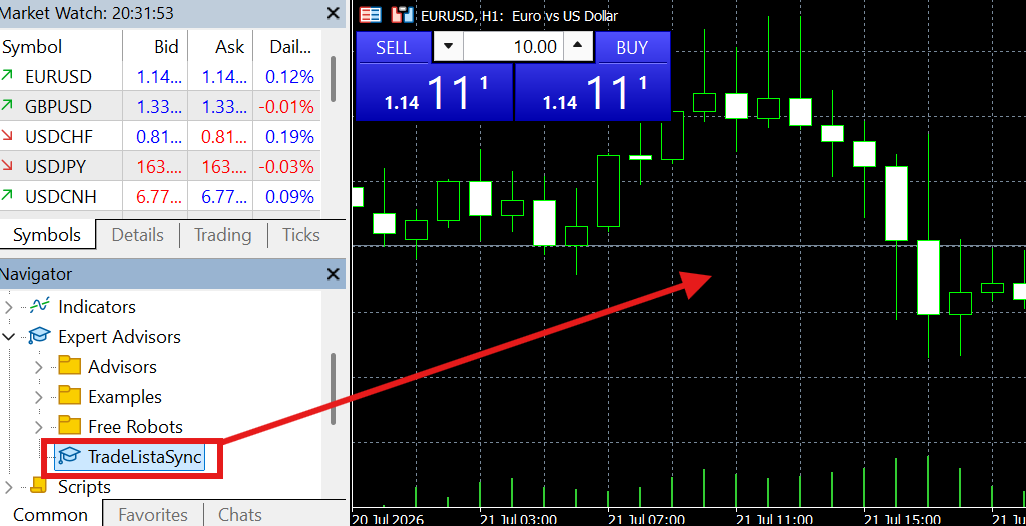
Wechsel zurück ins Hauptfenster von MetaTrader. Such im Navigator unter Expert Advisors den Eintrag TradeListaSync und zieh ihn auf einen beliebigen offenen Chart. Symbol und Zeiteinheit spielen keine Rolle, er beobachtet dein ganzes Konto.
Es öffnet sich ein Fenster. Klick auf den Reiter „Eingaben“ und füg den in Schritt 4 kopierten API-Schlüssel in das obere Feld ein, „API-Schluessel“.
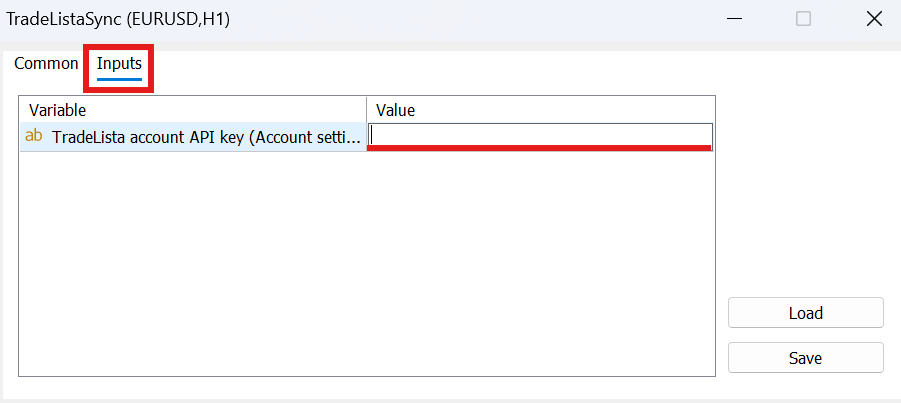
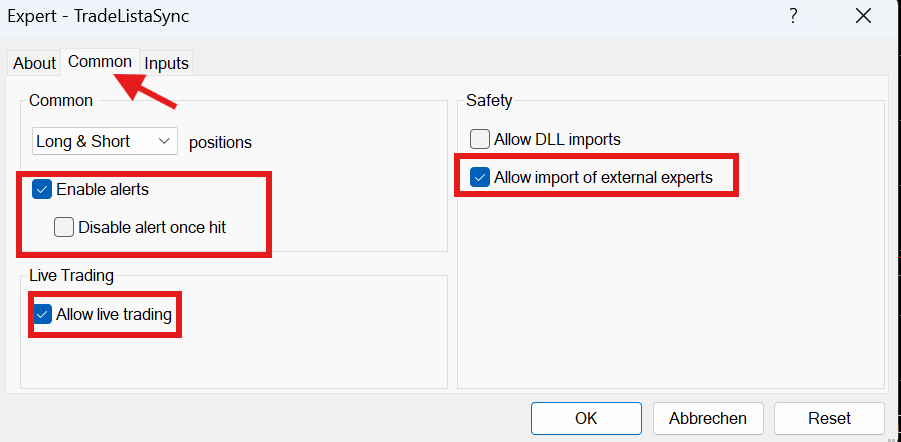
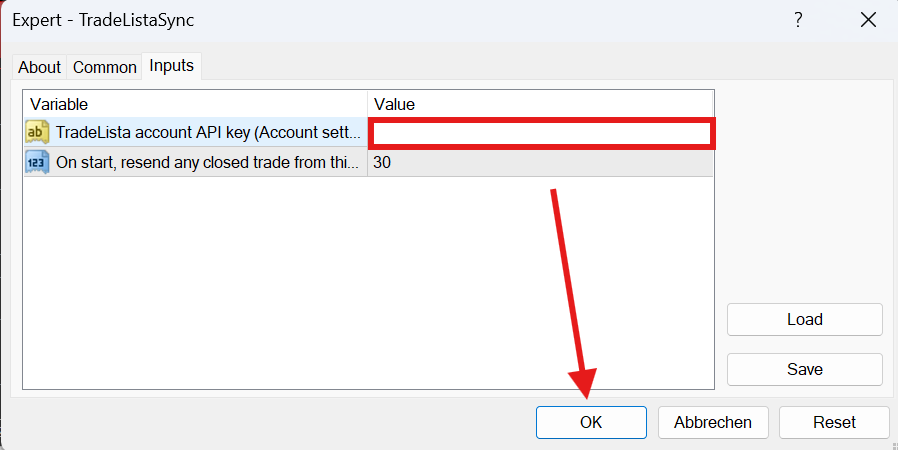
Klick auf den Reiter „Allgemein“ und setz den Haken bei „Algorithmischen Handel erlauben“„Live-Handel erlauben“. Dann auf OK, damit der Expert Advisor angehängt wird. (Den Knopf „Speichern“ brauchst du nicht, er legt deine Einstellungen nur als Datei ab. Erscheint ein Speichern-Dialog, brich ihn einfach ab.)
Darunter steht ein zweites Feld, „Wie viele Tage zurueck …“, voreingestellt auf 30. Es legt fest, wie weit der Expert Advisor zurückschaut, um geschlossene Trades zu finden, die er noch nicht geschickt hat. Er prüft das nicht nur beim Start, sondern alle paar Sekunden, solange das Terminal läuft. Genau deshalb landet auch ein Trade vom Handy von selbst im Journal, sobald dein Rechner wieder an ist.
Wichtig bei MetaTrader 4: Der Expert Advisor sieht nur die Trades, die unten im Terminal im Reiter „Kontoauszug“ (englisch „Account History“) geladen sind. Steht der auf „Heute“, findet er einen Trade von gestern nicht, auch keinen vom Handy. Mach dort einen Rechtsklick und wähl „Letzte 3 Monate“ oder „Alle Historie“.
Sofort geht es nicht. Das Terminal muss die Handelshistorie erst vom Broker bekommen, und der Expert Advisor arbeitet sie von der ältesten an in Zwanzigerschritten ab. Auf einem Konto mit viel Betrieb kann ein Trade deshalb ein bis zwei Minuten brauchen, bis er auftaucht. Lass ihn in Ruhe zu Ende arbeiten. Trägst du den Trade zusätzlich von Hand ein, steht er hinterher doppelt im Journal.
Algo-HandelAutoTrading einschalten (der Hauptschalter)
Der Haken aus Schritt 8 galt nur für diesen einen Expert Advisor. Es gibt zusätzlich einen Schalter für das ganze Terminal, der an sein muss. Such oben im MetaTrader-Fenster den Knopf „Algo-Handel“„AutoTrading“ und schalt ihn ein. Damit der Expert Advisor läuft, müssen beide an sein.
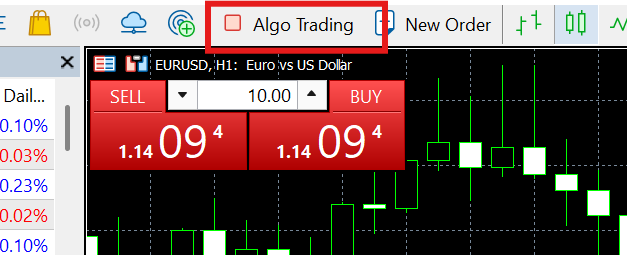
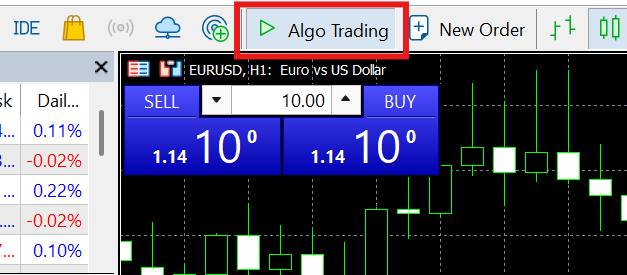
Das Symbol auf dem Knopf wechselt vom roten Quadrat (aus, links) zum grünen Dreieck (an, rechts). Schau jetzt oben rechts in deinen Chart: Ein kleines lachendes Gesicht neben TradeListaSync bedeutet, dass er aktiv ist und läuft.
Ausprobieren
Eröffne einen kleinen Trade, etwa mit der kleinsten Positionsgröße, die dein Konto zulässt, und schließ ihn sofort wieder. Das dient nur der Kontrolle, ob alles funktioniert.
Geh zurück in dein TradeLista-Dashboard, wechsel auf das gerade verbundene Konto (die Kontoauswahl oben auf der Seite oder im Menü hinter deinem Bild), und der Trade sollte innerhalb weniger Sekunden auf dem heutigen Datum erscheinen.
Ab jetzt landet jeder Trade, den du schließt, automatisch dort. Von Hand exportieren musst du nichts mehr.
Schon länger dabei? Historie einlesen
Der Expert Advisor schickt nur Trades, die nach dem Anhängen geschlossen werden. Alles, was du vorher gehandelt hast, bliebe sonst leer. So holst du es dazu: Geh in MetaTrader auf den Reiter Historie„Kontoauszug“, Rechtsklick irgendwo hinein und dann „Als Bericht speichern“. Es entsteht eine .html-Datei. Der Bericht enthält nur, was der Reiter gerade zeigt. Wähl deshalb vorher mit demselben Rechtsklick „Alle Historie“.
Klick dann in deinem Dashboard neben „+ Trade hinzufügen“ auf „⬆ Importieren“, lad die Datei hoch, sieh dir die gefundenen Trades an und übernimm sie. Das ist eine einmalige Sache und keine laufende Übertragung, sondern nur der Weg, Vergangenes nachzutragen.
Dafür brauchst du kein Pro. Nur die Menge unterscheidet sich:
Im Kalender taucht kein Trade auf
Wie sehe ich, was genau schiefgeht?
Beim Klick auf Kaufen oder Verkaufen passiert nichts
Das Gesicht oben rechts im Chart ist traurig
TradeListaSync im Navigator. Letzteres ist nur ein Dateisymbol und bedeutet nichts. Ein trauriges Gesicht im Chart heißt, dass der Algo-Handel für diesen Chart aus ist. Klick den Knopf für den Algo-Handel in der Werkzeugleiste an oder mach einen Rechtsklick in den Chart → Expert Advisors → „Live-Handel erlauben“.Kann ich mehrere Konten verbinden?
Eröffnet oder ändert der Expert Advisor Trades?
Je geschlossenem Trade wird genau das geschickt und sonst nichts: Symbol, Positionsgröße, Einstiegs- und Ausstiegskurs, der Stop-Loss und Take-Profit beim Eröffnen, das Ergebnis einschließlich Swap und Kommission, Datum und Uhrzeit des Schließens samt der UTC-Abweichung deines Rechners, die Haltedauer, Kauf oder Verkauf, die Ticketnummer des Trades und dein API-Schlüssel, damit alles im richtigen Konto landet. Zugangsdaten, Passwort, Investorpasswort, Guthaben und offene Positionen werden nie gelesen und nie geschickt. Die vollständige Aufstellung steht in unserer Datenschutzerklärung in Abschnitt 5.
Der Schalter Algo-Handel beziehungsweise „Algorithmischen Handel erlauben“ aus den Schritten 8 und 9 sieht aus, als würdest du damit Handelsrechte vergeben. Das tust du nicht. MetaTrader verlangt diesen Schalter, damit überhaupt ein Expert Advisor läuft, auch ein rein lesender wie dieser. Er gilt für das ganze Programm und ist keine Erlaubnis speziell für TradeListaSync.
Und dein API-Schlüssel erlaubt nur, die Trades dieses einen Kontos in deinen eigenen TradeLista-Kalender zu schreiben. Mit ihm kommt niemand an dein Brokerkonto, niemand kann damit handeln, und ein anderes Konto erreicht er auch nicht.
Woher weiß ich, dass die Datei keinen Virus enthält?
Drei Dinge kannst du darin prüfen: Die Datei bindet keine DLL ein, es gibt also keine Zeile mit
#import. Ohne DLL läuft ein Expert Advisor im geschützten Bereich von MetaTrader und kommt nicht an den Rest deines Rechners. Sie enthält keinen Code zum Handeln, es gibt also kein OrderSend und keinen Auftrag zum Eröffnen oder Schließen. Und sie sendet nur an eine einzige Adresse, die du in Schritt 3 selbst freigegeben hast. Jede andere Adresse blockiert MetaTrader von sich aus.
Willst du außerdem sichergehen, dass die Datei auf dem Weg zu dir nicht verändert wurde? Dann vergleich ihre Prüfsumme mit der in Schritt 5. Unter Windows öffnest du dafür die PowerShell im Ordner Downloads und gibst
Get-FileHash TradeListaSync.mq5Get-FileHash TradeListaSync.mq4 ein. Stimmt die angezeigte Zeichenfolge überein (Groß- und Kleinschreibung spielt keine Rolle), ist es genau die Datei, die wir veröffentlicht haben.
Ich nutze keinen Expert Advisor. Geht TradeLista trotzdem?
Kann ich Trades von vor dem Verbinden einlesen?
- Trades von Hand eintragen
- 1 Konto
- Import der 100 neuesten Trades
- Automatische Übertragung aus MT4 und MT5
- Trades von Hand eintragen
- Automatische Übertragung aus MT4 und MT5
- Bis zu 5 verbundene Konten
- Import der ganzen Historie
Trades von Hand eintragen, ohne Broker-Verbindung
Funktioniert im Gratis-Tarif, nichts zu installieren, und die Trades landen im selben Kalender wie die übertragenen.
Anmelden oder ein Gratis-Konto anlegen
Von Hand eintragen geht im Gratis- wie im Pro-Tarif. Ohne Expert Advisor, ohne Download und ohne Einrichtung außerhalb von TradeLista.
Geh auf tradelista.com und melde dich an oder leg ein Gratis-Konto an, falls du noch keins hast.
Kalender öffnen
Klick oben im Menü auf „Dashboard“ oder geh direkt auf tradelista.com/app.html.
Einen Trade eintragen, zwei Wege
Klick oben rechts im Kalender auf „+ Trade hinzufügen“. Es öffnet sich ein leeres Formular, und du wählst das Datum selbst.
Klick im Kalender direkt auf den Tag, an dem du gehandelt hast, und dort auf „Trade für diesen Tag hinzufügen“. Das Datum steht dann schon drin.
Beide Wege öffnen dasselbe Formular. Nimm den, der dir schneller geht.
Den Trade ausfüllen
Pflichtfelder sind Datum, Symbol (etwa EURUSD), Positionsgröße und Gewinn oder Verlust.
Freiwillig sind Einstiegskurs und Ausstiegskurs. Trag sie ein, wenn du sie hast. Zum Speichern brauchst du sie nicht.
Auf „Hinzufügen“ klicken, fertig
Der Trade erscheint sofort im Kalender, je nach Ergebnis grün oder rot.
Du willst mehr festhalten? Klick den Trade danach an. Notiz und Marken gibt es in jedem Tarif. Screenshots, Rückblickfragen und die goldenen Handelsregeln gehören zu Pro.
Kann ich einen Trade später ändern oder löschen?
Kann ich später auf die automatische Übertragung wechseln?
Bereit loszulegen?
Öffne deinen Kalender und trag deinen ersten Trade ein. Das dauert keine Minute.